1. No Connectivity Provider or the wrong Connectivity Provider has been selected
Problem
For your Channel Manager to connect to Booking.com, the correct Connectivity Provider must be selected in the Booking.com Extranet.
If no provider or the wrong provider is selected, the connection cannot be established.
Solution
- Log in to the Booking.com Extranet.
- Click your profile icon in the top-right corner and open Connectivity Provider.
- Search for your Connectivity Provider.
- If you use DiBooq, select Channex.io as your Connectivity Provider. If another provider is already connected, disconnect it first and then select the correct provider.
- Confirm the connection.
2. You haven't created a Rate Plan in Booking.com
Problem
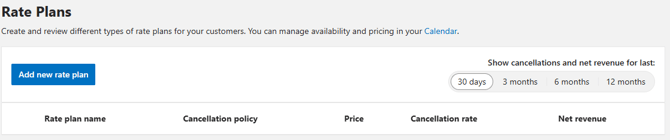
To connect your Channel Manager to Booking.com, you must have at least one active Standard Rate (Rate Plan).
If no Rate Plan exists, prices and availability cannot be synchronized.
Solution
- Open the Booking.com Extranet.
- Go to Rates & Availability → Rate Plans.
- Create at least one Standard Rate.
- Start the connection process again.
3. You are using the wrong Booking.com ID
Problem
Booking.com uses two different IDs:
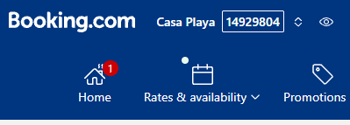
- Property ID (Hotel ID): Identifies your entire property and is required to connect your Channel Manager to Booking.com.
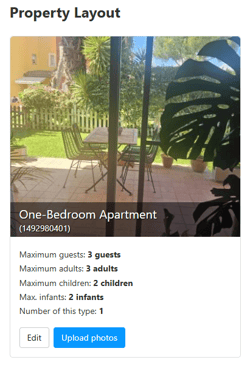
- Room ID: Identifies an individual accommodation unit or room type within your property.
For example, if your property contains three vacation apartments, each apartment has its own Room ID.
Example Property ID
Property ID: 1234567 (older Property IDs may contain only six digits)
Room IDs:
-
123456701
-
123456702
-
123456703
The Property ID always remains the same and identifies your entire property. The Room IDs belong to the individual apartments or room types.
If you accidentally enter a Room ID instead of the Property ID in your Channel Manager, Booking.com cannot establish the connection.
Example Room ID
Solution
- Open the Booking.com Extranet.
- Open the relevant property. You will find the Property ID in the upper-right corner of the property page.
- Enter only this Property ID in your Channel Manager.
- Save your changes and start the connection process again.
4. Your Connectivity Provider is connected, but the Property ID is missing in your Channel Manager
Problem
Even if Booking.com is already connected to your Connectivity Provider, synchronization cannot start until your Property ID has been entered in your Channel Manager and the connection has been completed successfully there.
Solution
- Open your Channel Manager.
- Go to Booking.com.
- Select the property you want to synchronize.
- Enter the corresponding Booking.com Property ID.
- Confirm the connection.
5. Your property has multiple Room IDs
Problem
If your property contains multiple vacation rentals or rooms and they have not been created as separate Property IDs in Booking.com, Booking.com assigns a separate Room ID to each unit.
Many vacation rental Channel Managers only provide limited support—or no support at all—for multiple Room IDs. As a result, some units cannot be connected or synchronized correctly.
DiBooq fully supports multiple Room IDs, allowing you to connect a property with multiple vacation rentals or rooms to Booking.com without any issues.
Solution
If your current Channel Manager does not support multiple Room IDs, you should consider switching to a provider that fully supports this feature, such as DiBooq.
If you are already using DiBooq and still experience problems connecting multiple Room IDs, please refer to this article:
👉 How to connect multiple Room IDs with Booking.com – the correct mapping
There, we explain step by step how to assign each Room ID to the correct accommodation.
Is the problem still not solved?
If none of the solutions above resolve your issue, book your free onboarding session today.
👉 Book your onboarding session
One of our Booking.com experts will review the connection with you step by step. In most cases, the cause is identified within just a few minutes, and the connection can be established successfully.