
Why is this important?
After connecting the DiBooq Channel Manager, your Booking.com Standard Rate becomes the basis for price management.
The prices stored in DiBooq are synchronized to the Standard Rate in Booking.com together with the channel markup you have configured.
Additional Rate Plans, such as:
- Non-refundable
- Weekly Rate
- Flexible Rate
should be deleted and recreated after connecting DiBooq.
Important: Minimum stay restrictions from DiBooq are only synchronized to the Standard Rate.
You can verify this by opening: Rates & Availability → Calendar and displaying the restrictions.
For all Rate Plans other than the Standard Rate, the minimum stay is reset after the connection. Therefore, these Rate Plans should be reviewed and configured again after connecting DiBooq.
Review existing Rate Plans
Open in Booking.com:
Rates & Availability → Rate Plans
Review your existing Rate Plans and remove all Rate Plans except the Standard Rate.
The Standard Rate must remain active because it serves as the basis for the Channel Manager connection and will be used as the foundation for all additional Rate Plans.
Create additional Rate Plans again
Now recreate the required Rate Plans, for example:
- Non-refundable
- Weekly Rate
- Flexible Rate
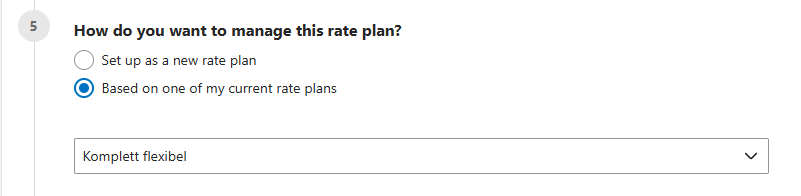
When creating each Rate Plan, select the Standard Rate as the base rate (this option is selected by default).
Set minimum stays again
Review the Minimum stay setting for every newly created Rate Plan.

For newly created Weekly or Monthly Rates, you do not need to change this setting, as Booking.com automatically sets the minimum stay to 7 or 28 nights.
Configure seasonal minimum stays
Seasonal minimum stays can be configured directly in DiBooq (see Seasonal Prices).
Please note that this synchronization only applies to the Standard Rate.
If you also use additional Rate Plans, such as:
- Non-refundable
- Flexible Rate
you should also configure the corresponding seasonal minimum stays directly in Booking.com.
Open: Rates & Availability → Calendar and configure the required seasonal minimum stays for the corresponding Rate Plans and date ranges.
This allows you to define different minimum stays for summer holidays, public holidays or other seasonal periods for Rate Plans other than the Standard Rate.
Note: The video at the beginning of this article shows the complete setup process step by step.