
If you want to manage your property professionally on Booking.com, you need to understand the difference between the Standard Rate and additional rate categories.
This is especially important when using a vacation rental channel manager such as DiBooq.
In this article, you’ll learn:
-
what the Booking.com Standard Rate is
-
how the Standard Rate is synchronized with DiBooq
-
how to create additional rate categories
-
where to configure each booking condition
-
how to request activation of additional booking conditions on Booking.com
-
what else vacation rental hosts need to consider
Booking.com Standard Rate
The Standard Rate is the central and most important rate for your property on Booking.com.
When you connect DiBooq to Booking.com, only this Standard Rate is fully synchronized.
This means that all global booking conditions configured in DiBooq’s vacation rental software are automatically transferred to the Booking.com Standard Rate.
These include:
-
seasonal minimum stay
-
maximum stay
-
valid check-in days
-
valid check-out days
-
preparation time
-
booking window, including the earliest and latest possible booking dates
Important:
The Standard Rate is synchronized with DiBooq via XML.
You should not modify this rate manually in the Booking.com Extranet.
The Standard Rate forms the basis for all additional rate categories.
What is a Booking.com rate category?
A rate category is an additional pricing option based on your Standard Rate.
You can use it to:
-
offer different cancellation conditions
-
provide discounts for longer stays
-
set different minimum-stay requirements
-
implement different pricing strategies
Guests can then choose between multiple pricing options, such as a lower-priced non-refundable rate.
Please note: Due to a technical limitation of the Booking.com API in connection with XML integrations, booking conditions cannot be transferred for additional rate categories besides the Standard Rate.
Minimum stay, closed for arrivals, and closed for departures should therefore be managed directly by the host in the Booking.com Extranet for these additional rate categories.
Important information before creating additional rates
If you created rate categories before connecting DiBooq, proceed as follows:
-
Please delete all existing rate categories except for the standard rate.
-
Now you will see only the standard rate in your Booking.com Extranet.
-
Next, connect to the DiBooq Channel Manager.
-
Then create your additional rates.
-
You can now define (seasonal) booking conditions in Booking.com for the other rate categories, for example.
You can recognize whether your additional rate categories have been set up correctly by checking that they are marked “No XML.”
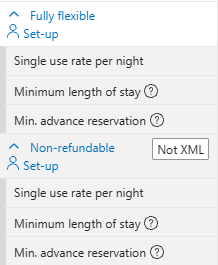
Have you already connected to DiBooq without deleting the additional rate categories first? No problem. You can delete the additional rate categories after connecting to DiBooq and then create them again.
Recommended Booking.com rate structure
1. Standard Rate
Free cancellation up to 14 or 21 days before arrival.
2. Flexible Rate
Free cancellation between 1 and 3 days before arrival.
Recommendation: Add a 10% surcharge to the Standard Rate.
3. Non-refundable Rate
No free cancellation.
Recommendation:Offer a 10% discount compared with the Standard Rate.
This rate gives you maximum planning security.
4. Weekly Rate
Recommendation: Offer a 15% discount for stays of 7 nights or more, with free cancellation up to 14 or 21 days before arrival.
5. Monthly Rate
Recommendation:Offer a 30% discount for stays of 28 nights or more, with free cancellation up to 14 or 21 days before arrival.
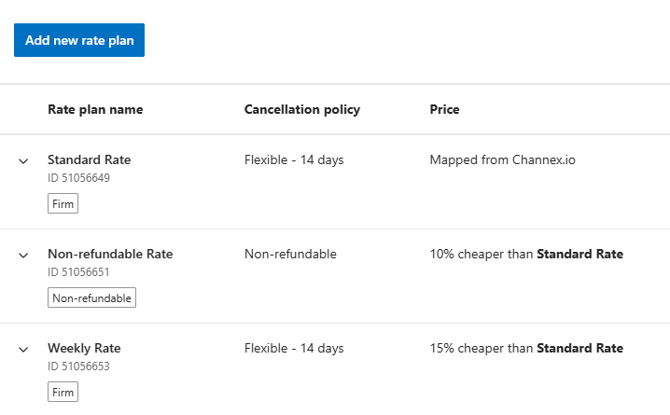
Example of a solid Booking.com rate-category setup
How to create a Booking.com rate category: step by step
Here’s how to create a new rate category:
-
Log in at admin.booking.com.
-
Go to Rates & Availability → Rate plans.
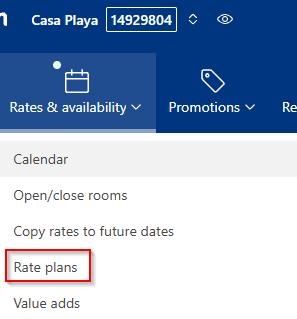
This is how you access rate categories in the Booking.com Extranet
-
Click Add a new rate category.
-
Select the desired category.
-
Define the cancellation conditions.
-
Define the minimum stay for this rate. For weekly and monthly rates, Booking.com sets this automatically.
-
Define a price surcharge or discount.
-
Activate the rate.
Which booking conditions can be configured where?
For the Standard Rate, you manage the following in DiBooq:
-
minimum stay
-
maximum stay
-
check-in days
-
check-out days
-
preparation time
-
booking window, including the earliest and latest possible booking dates
For additional rate categories, you can adjust the following booking conditions individually in the Booking.com Extranet:
-
minimum length of stay
-
minimum advance booking period
Other settings must first be activated by Booking.com Support.
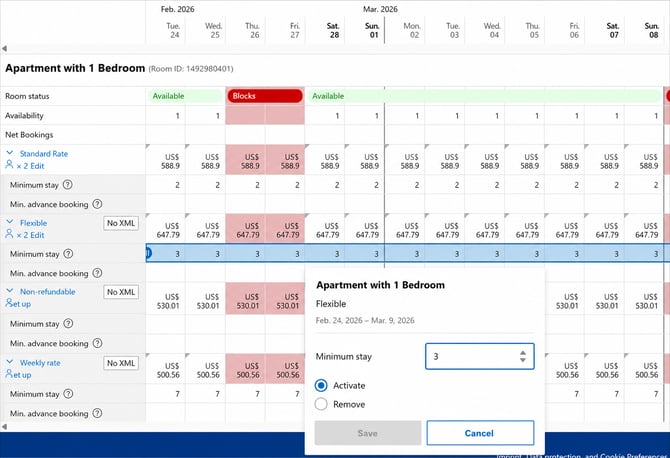
Requesting activation of advanced booking conditions
The following settings are not automatically active for additional rates on Booking.com:
-
maximum length of stay
-
minimum stay from the date of arrival
-
maximum stay from the date of arrival
-
no arrivals
-
no departures
-
maximum advance booking period
For the Standard Rate, you manage everything centrally in DiBooq. For additional rates, you must explicitly ask Booking.com to activate these options.
Contacting Booking.com to activate rate-category settings
-
Log in to the Extranet.
-
Open your inbox.
-
Select View contact options.
-
Select Rates or pricing conditions.
-
Send your request.
Template for your Booking.com Support request
Dear Booking.com Partner Support Team,
I would like to request that additional booking conditions be activated for an existing rate category at my property.
Property: [Property name]
Property ID: [Your ID]
Affected rate category or categories: [Rate name(s)]
Please activate the following booking conditions:
-
maximum length of stay
-
minimum stay from the date of arrival
-
maximum stay from the date of arrival
-
no arrivals
-
no departures
-
maximum advance booking period
This activation is necessary to implement my pricing strategy flexibly and manage my availability in line with market conditions.
Thank you for your support.
Kind regards,
[Your name]
Do you have questions about Booking.com rate categories or need help setting them up optimally? Simply book a free onboarding appointment. We’ll be happy to support you personally!