Before you can connect your property to the DiBooq Channel Manager, you first need to create it in DiBooq.
Here's how to do it step by step
In the Web App (recommended)
Open the DiBooq Web App in your browser on your computer and go to Properties.
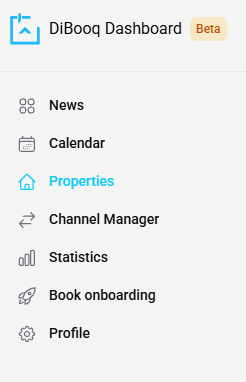
Click the plus (+) icon to add a new property.
Now enter the required information about your property to complete the setup.The steps are explained below:
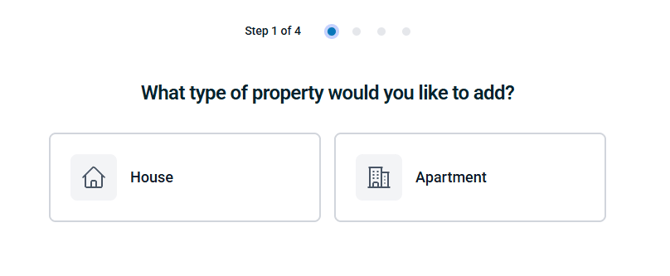
Step 1 of 4 – Choose your property type
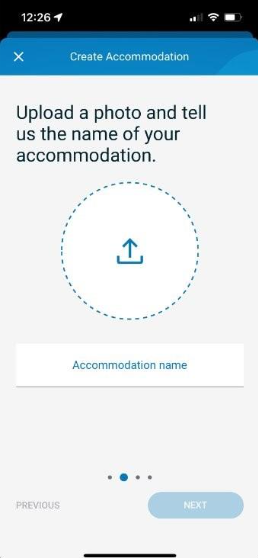
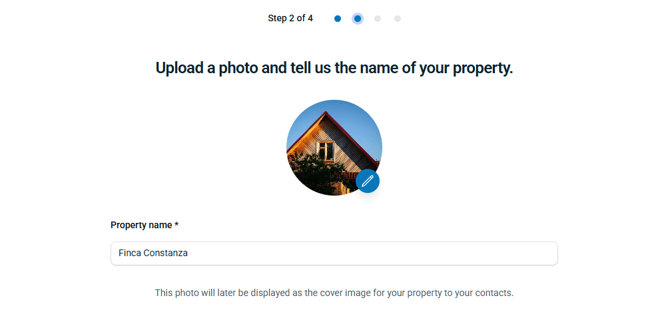
Step 2 of 4 – Upload a photo and give your property a name
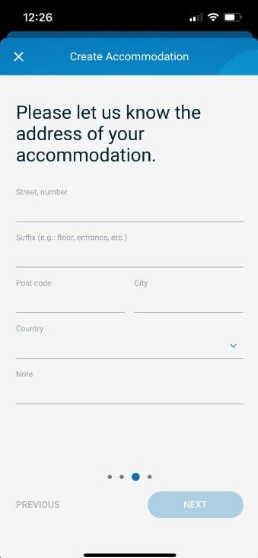
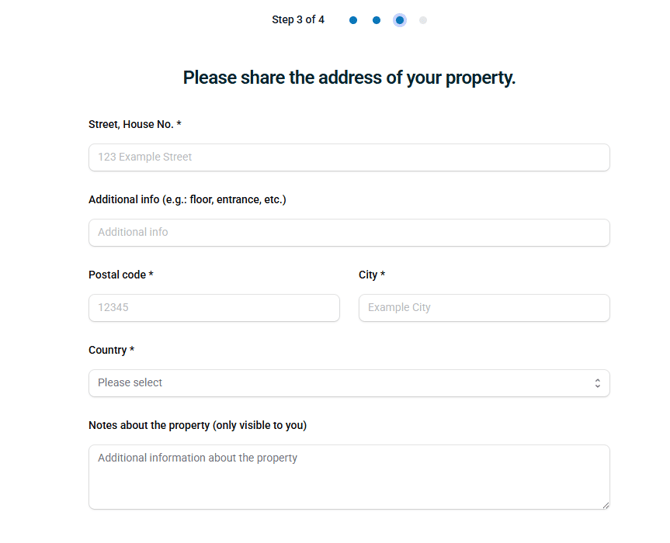
Step 3 of 4 – Enter your property address
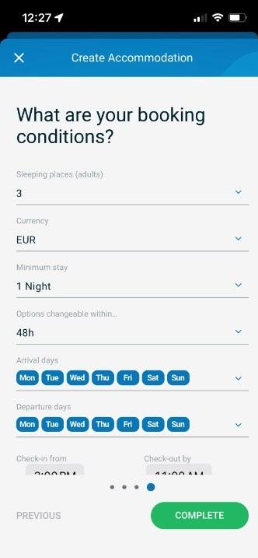
Step 4 of 4 – Define the booking conditions for your vacation rental
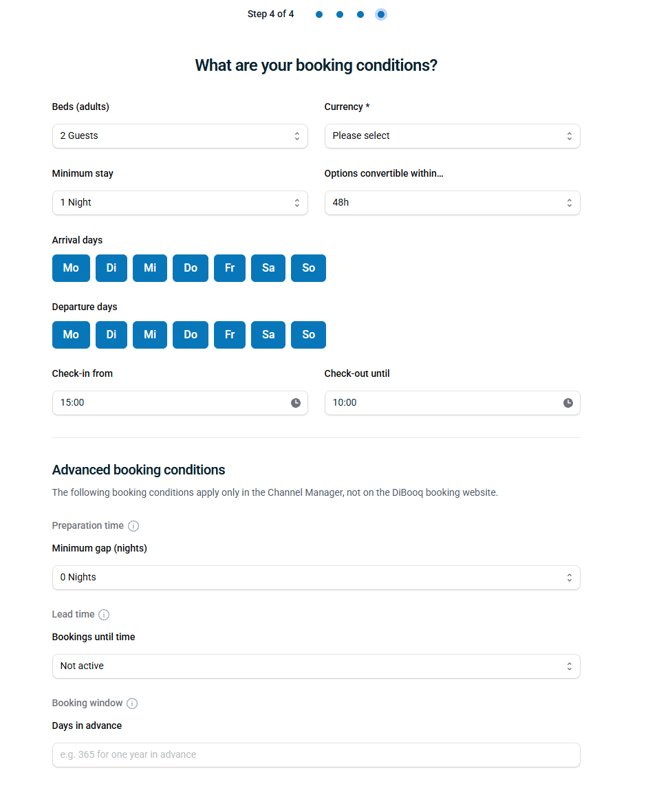
Your property has now been created. The next step is to set up your prices. Go to:
Properties → Select Property → Prices
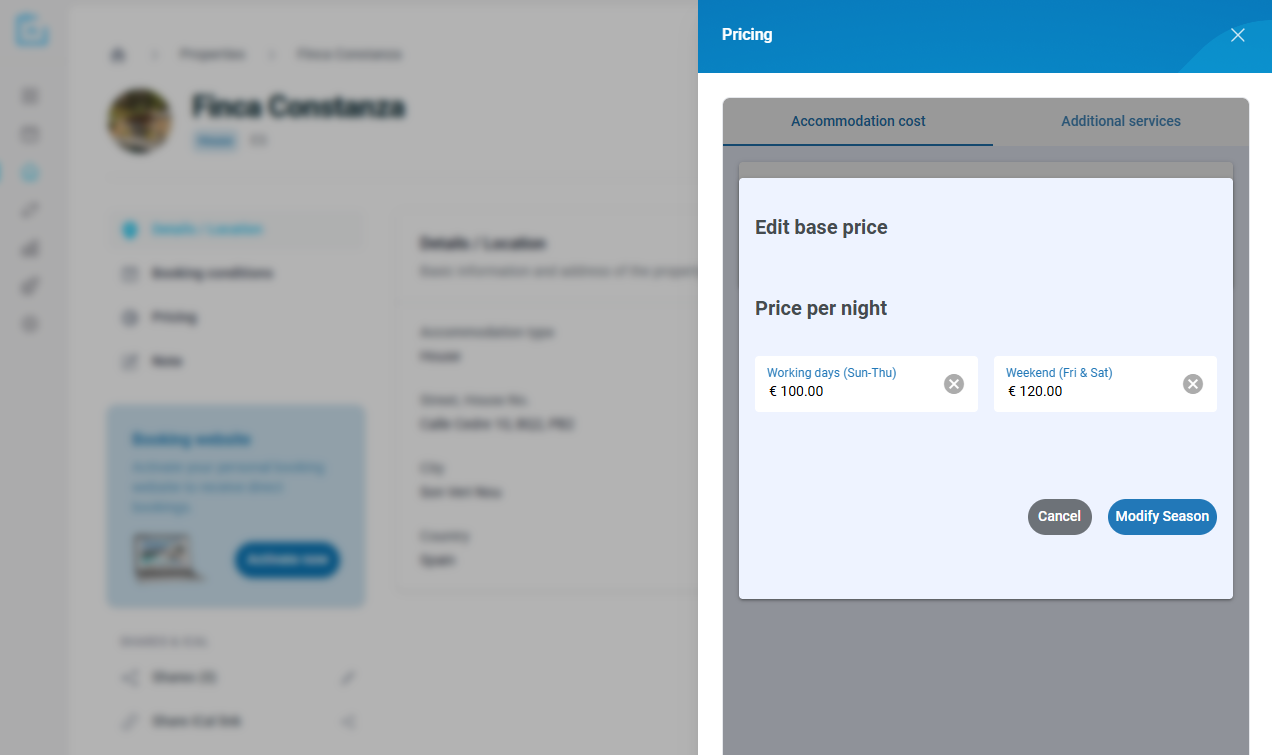
Step 1 of 2 – Set your base price
Your base price should be the lowest price you offer for the minimum occupancy (number of guests).
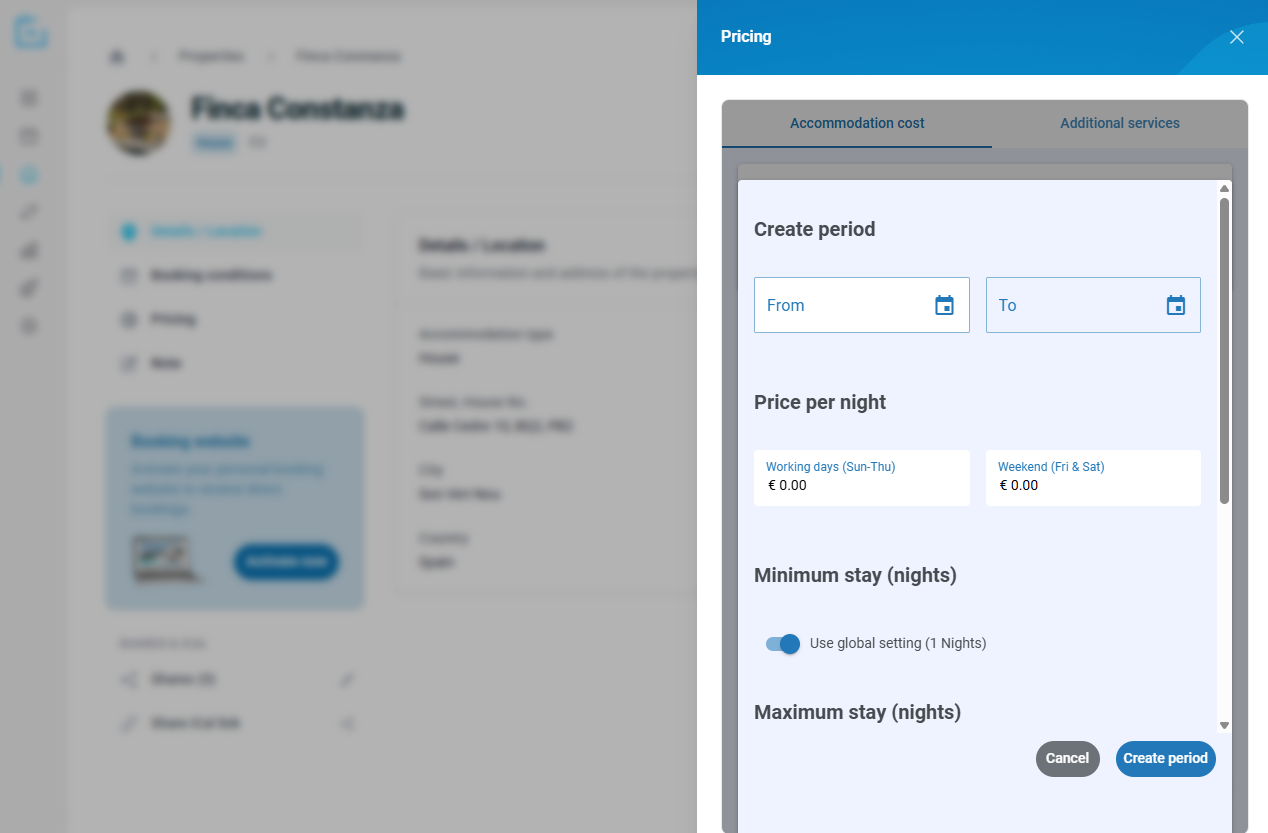
Step 2 of 2 – Create seasonal prices that differ from your base price
For your seasonal prices, you can also define different minimum stays, among other settings.
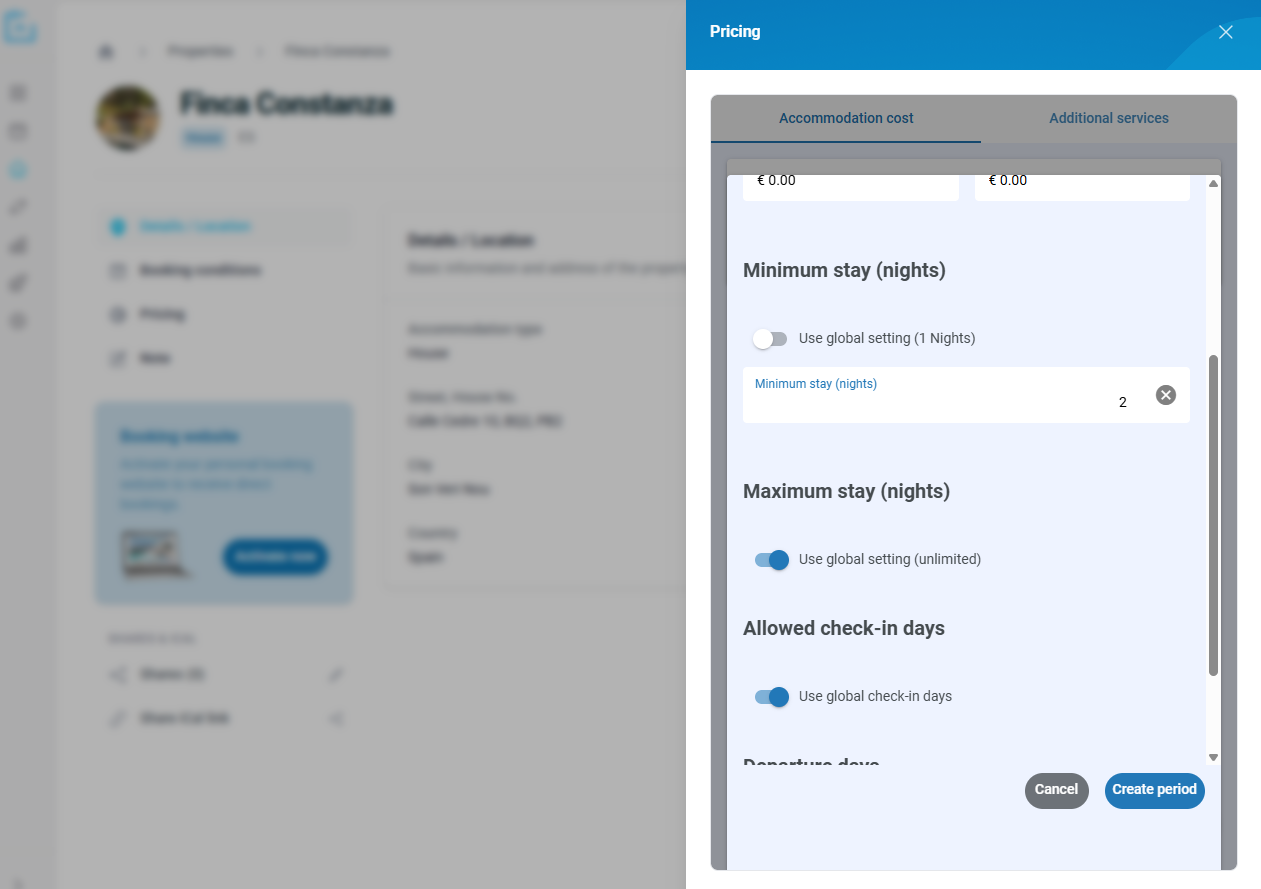
Done! 🎉 Your property is now fully set up.
You can now connect booking platforms such as Airbnb, Booking.com or Vrbo under Channel Manager and synchronize them with DiBooq.
Important: Do you already have bookings that were not made through Airbnb, Booking.com or Vrbo, or do you already have blocked dates in your calendar? Then be sure to read the following article before connecting your booking platforms. This ensures that all existing bookings and blocked dates are imported correctly.
This ensures that all existing bookings and blocked dates are imported correctly.
In the Mobile App
Before you can connect your property to the Channel Manager, you first need to set it up.
Follow these steps:
- Open the DiBooq App and go to Profile → Property Management.
- Tap the house icon in the bottom-right corner.
- A new window will open.
- Enter all the required information about your property to complete the setup.
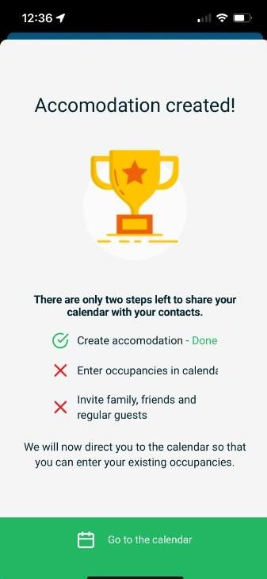
Once your property has been set up, you can connect it to the Channel Manager and manage your bookings efficiently.