1. Prerequisites
Before connecting to Booking.com, make sure your property is already set up in DiBooq and your calendar is ready.
2. Select Channex.io in Booking.com
-
Log in to the Booking.com Extranet (admin.booking.com).
-
Once you’re on the group page, go to the property page
-
Click the account icon in the top right corner.
-
Open the Connectivity Providers section.
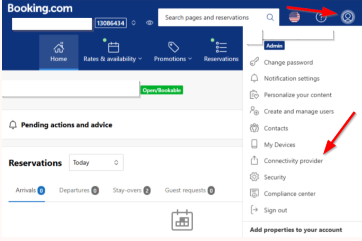
- Click Search.
- Search for Channex.io.
- Select Channex.io as your connectivity provider.
- Confirm the connection request.
Once confirmed, Booking.com will display a message indicating that the connection request has been completed.
3. Copy your property ID
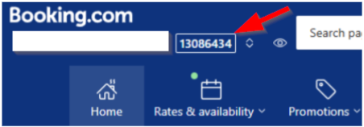
Now copy your property ID from Booking.com.
You'll find it in the top-left corner of the Booking.com Extranet, next to your property's name.
4. Complete the connection in DiBooq
-
Open your browser on your computer, go to go.dibooq.com, and log in.
-
Go to Channel Manager -> Booking.com -> Connect.
-
Click “Connect” next to the property you want to connect.
-
Enter the property ID from the Booking.com Extranet into the corresponding field.
-
Optional: Enter a price increase in % if you want to automatically increase your Booking.com prices.
-
Click Continue.
-
Check the displayed mapping between DiBooq and Booking.com.
-
Click Connect.
Booking.com is now connected to the DiBooq Channel Manager.
5. Next Step
Once the connection is established, you should review your rate categories on Booking.com and reconfigure them if necessary.